




Teaching Probability Through Everyday Decisions and Gambling Examples
Probability is an important mathematical concept that helps people understand uncertainty. It appears in weather forecasts, medical research, business planning, games, and many other everyday situations. Learning how probability works can also help students recognize misleading claims about gambling and chance.
Understanding the Basics of Probability
Probability describes how likely an event is to occur. It ranges from zero, representing an impossible event, to one, representing a certain event. These values are often expressed as percentages or fractions.
For example, when flipping a fair coin, the probability of getting heads is one-half, or 50 percent. Each flip has two equally likely outcomes: heads and tails.
This simple example helps explain an important principle. Previous results do not automatically determine the next outcome. If a fair coin lands on heads five times in a row, the probability of heads on the next flip remains 50 percent, assuming the flips are independent.
Applying Probability to Gambling
Games of chance provide examples of uncertainty, but their rules differ. Some games involve independent random outcomes, while others include decisions or conditions that influence the possibilities.
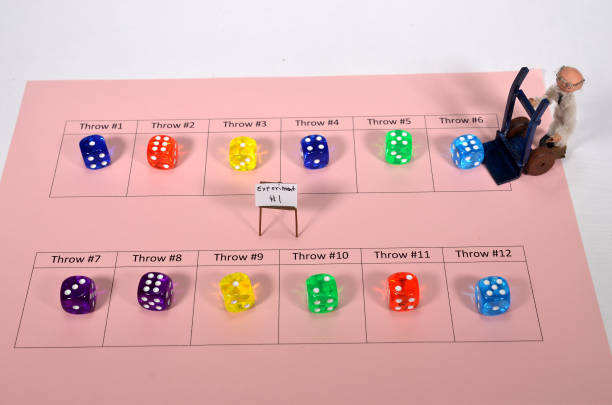
Students can learn to distinguish between theoretical probability and observed frequency. Theoretical probability is calculated from a model of possible outcomes, while observed frequency describes what happens during actual trials.
For example, a coin may not produce exactly 50 heads in every 100 flips. Random variation is normal, particularly across relatively small samples.
These concepts help explain why a previous winning streak does not necessarily make another win more likely. They also challenge claims that a person can reliably predict random outcomes using patterns alone.
Developing Critical Thinking Skills
Probability education is most effective when students question how claims are supported. If an advertisement promises guaranteed winnings, learners can ask what evidence supports the statement and whether the claim is mathematically possible.
Students can also examine sample sizes, identify missing information, and distinguish correlation from causation. These skills are useful far beyond gambling-related examples.
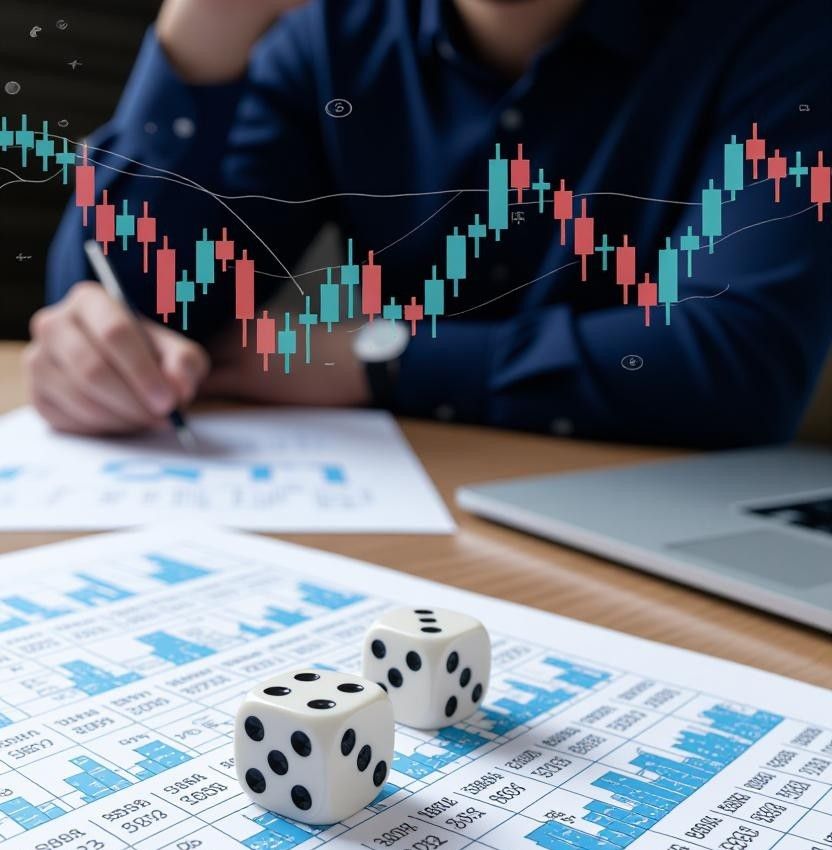
Teachers can encourage classroom discussions using harmless simulations, coins, dice, and probability exercises. No real-money gambling is necessary to demonstrate the mathematics of chance.
Why Financial Literacy Matters
Understanding probability does not automatically prevent financial mistakes. Students also need to learn about budgeting, opportunity costs, and the difference between entertainment spending and essential expenses.
Education should explain that gambling can result in financial losses and that it should never be treated as a reliable income source.
Conclusion
Probability lessons help students understand uncertainty, evaluate evidence, and question exaggerated claims. By combining mathematical exercises with critical thinking and financial literacy, educators can prepare learners to make more informed decisions in everyday life.
 Expected value combines possible outcomes with their probabilities. It is an important mathematical concept for understanding repeated uncertain decisions.
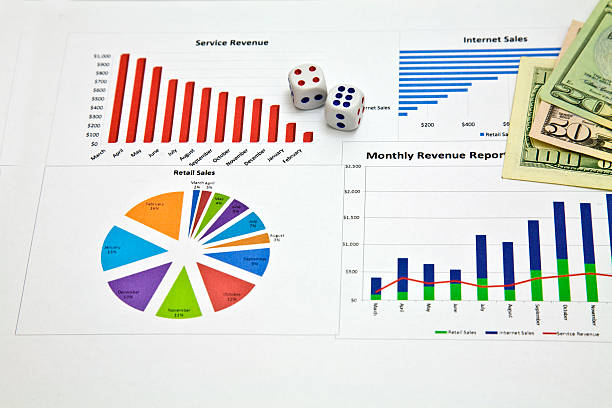
 Simulations on the Internet enable users to visualize odds in real time. The way of changing probabilities is explained using charts, graphs, and animations. This method of visual learning promotes better understanding and memory. It simplifies complex computations to novices.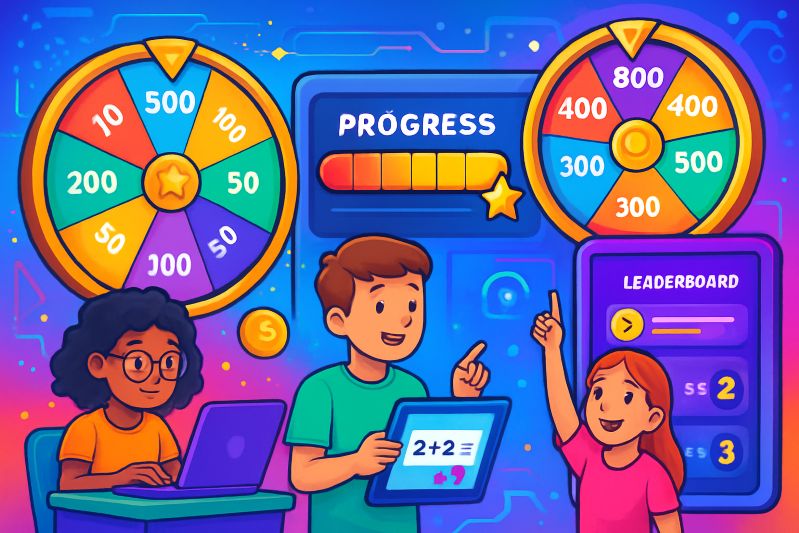



 Making Sense of the Win







 Closing Line Value has become one of the most talked-about concepts in sports betting. That’s a good thing. It’s one of the few tools that actually helps bettors understand whether they have an edge, regardless of the game stakes they’re playing at. But as CLV has become more popular, it’s also become misunderstood. Ideas get simplified, stretched, or repeated without context. Over time, those misunderstandings turn into myths. And those myths cause bettors to misuse CLV or dismiss it entirely. Let’s break down the biggest ones.
 Line shopping sounds simple. You compare odds across sportsbooks and take the best number. That’s the theory. In practice, many beginners do it halfway or misunderstand what actually matters. They think they’re being careful, but small mistakes quietly drain value from their bets, even when using a fast payout casino, where speed can create a false sense of efficiency. Most of these errors don’t feel like mistakes. They think reasonably in the moment. Over time, though, they add up. Below are three standard line shopping mistakes new bettors make without realizing it, and why fixing them matters more than most people think.
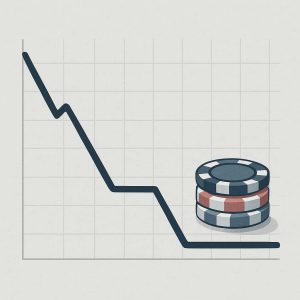 Every bettor hits a losing streak, it happens to both sharp and casual bettors. What matters is not the streak itself, but how you respond to it. Most bankrolls do not disappear because of one bad run; they disappear because of poor decisions made during that run. Recovery is not about chasing losses or hunting for a miracle bet, but about slowing down, checking your assumptions, and resetting your mindset in line with safe online gambling principles before more damage is done. Done right, a losing streak can be a warning sign rather than a financial disaster.

 Roulette has been one of the most iconic casino games for over three centuries. Its spinning wheel and simple layout have made it a favorite among both seasoned gamblers and curious newcomers. Now, with the rise of online gaming, the classic thrill of roulette is more accessible than ever. Players can enjoy the game from their phones or laptops without needing to step inside a casino. This accessibility makes it even more important to learn the basics before placing your first bet.
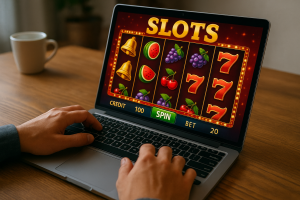 When people first hear about online slots, one of the most common questions is: Are they really fair? With no physical reels spinning in front of you, it’s natural to wonder what’s happening behind the screen. The answer comes down to technology and oversight. Their work plays a major role in building trust between players and casinos, especially for those who enjoy qqclubs slot game online Malaysia.
 Responsible gaming also forms one of the biggest dimensions within the Italian betting industry. Some of the features deployed by platforms such as 1Bet include self-exclusion devices, deposit restrictions, and alerts. All these actions will guarantee that betting is not only amusing but is also sustainable.

 Online slot games have rapidly gained popularity in recent years. PG Slot is one of the top platforms that offers exciting and innovative gaming experiences. If you’re new to the world of online gambling, learning the ins and outs of PG Slot can greatly enhance your gaming strategy. From understanding the game mechanics to mastering bankroll management, this guide will help you navigate through the essentials and improve your chances of success.